My 2025 Terminal Setup - tmux, Neovim, and Claude Code
8th year into my career in AI, and I realize my dev skills are a culmination of everything I've absorbed along the way - from tech leads and colleagues in my early days, to YouTubers like devaslife, ThePrimeagen, and Ali Abdaal, plus countless Redditors who took time to share their setups and answer questions.
There's a reason why developers obsess over their setup - the right keyboard, monitor, terminal config. It all translates to productivity. More productivity means more code written, more problems solved, more work shipped. When Linus Torvalds switches back to a mechanical keyboard, it makes tech news. That's how much we care about this stuff.
Then ChatGPT dropped. Two years later, we have legends like Boris Cherny (creator of Claude Code) and the team behind Cursor redefining how development work gets done.
But here's the thing: despite these AI breakthroughs, our core dev stack hasn't changed that much. Developers still reach for vim/emacs, tmux, VSCode/Intellij. People in data still use Jupyter notebooks, mostly because it's perfect for their day-to-day tasks. What's changed is that we now have an AI pair programmer sitting alongside these tools.
In hindsight, my setup has grown over the years. I'll share it below.
The Setup
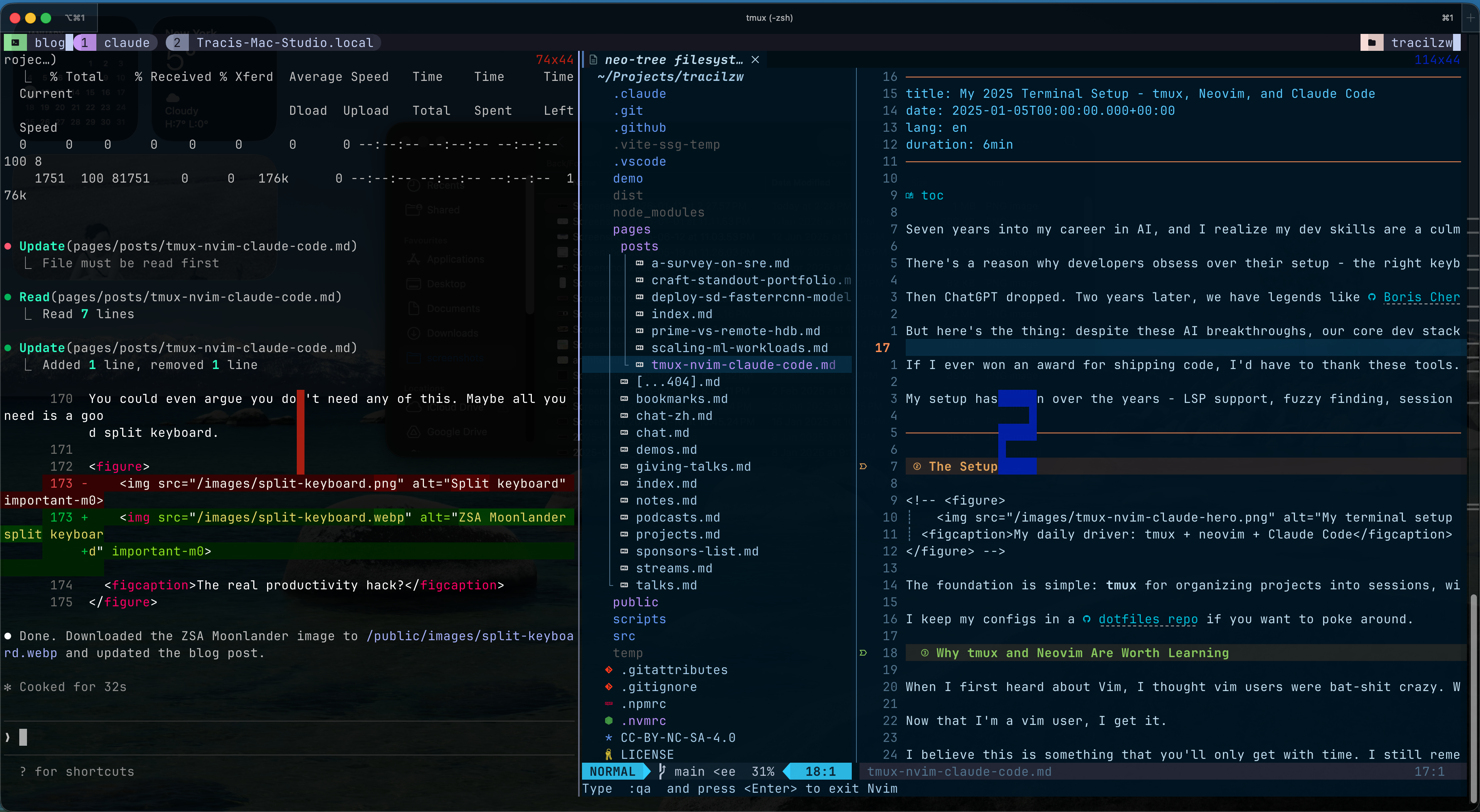
The foundation is simple: tmux for organizing projects into sessions, windows, and panes. Neovim as my editor. And Claude Code as my AI pair programmer running right there in the terminal.
I keep my configs in a dotfiles repo if you want to poke around. I switch between 3 devices regularly - work laptop, personal laptop, and a home desktop - so having a single repo with an install.sh that symlinks everything into place is a lifesaver. Clone, run the script, and I'm back to my exact setup in minutes.
Why tmux and Neovim Are Worth Learning
When I first heard about Vim, I thought vim users were bat-shit crazy. Why would anyone use hjkl to move the cursor instead of arrow keys? Learning Vim felt like trying to master an ancient, forbidden language just so I could edit a config file.
Now that I'm a vim user, I get it.
I believe this is something that you'll only get with time. I still remember the day I learned about vim macros. That was the day I went all-in and never looked back. You know what people say:
Vim's learning curve is actually a vertical wall, but once you've summited it, you can't imagine looking down.
tmux is another life-changing tool. I only converted when I learned about the tmux-resurrect and tmux-continuum plugins. Your entire dev setup - layout, panes, paths, running processes - is just one prefix + Ctrl-r away from total restoration. Even works when you restart your laptop.
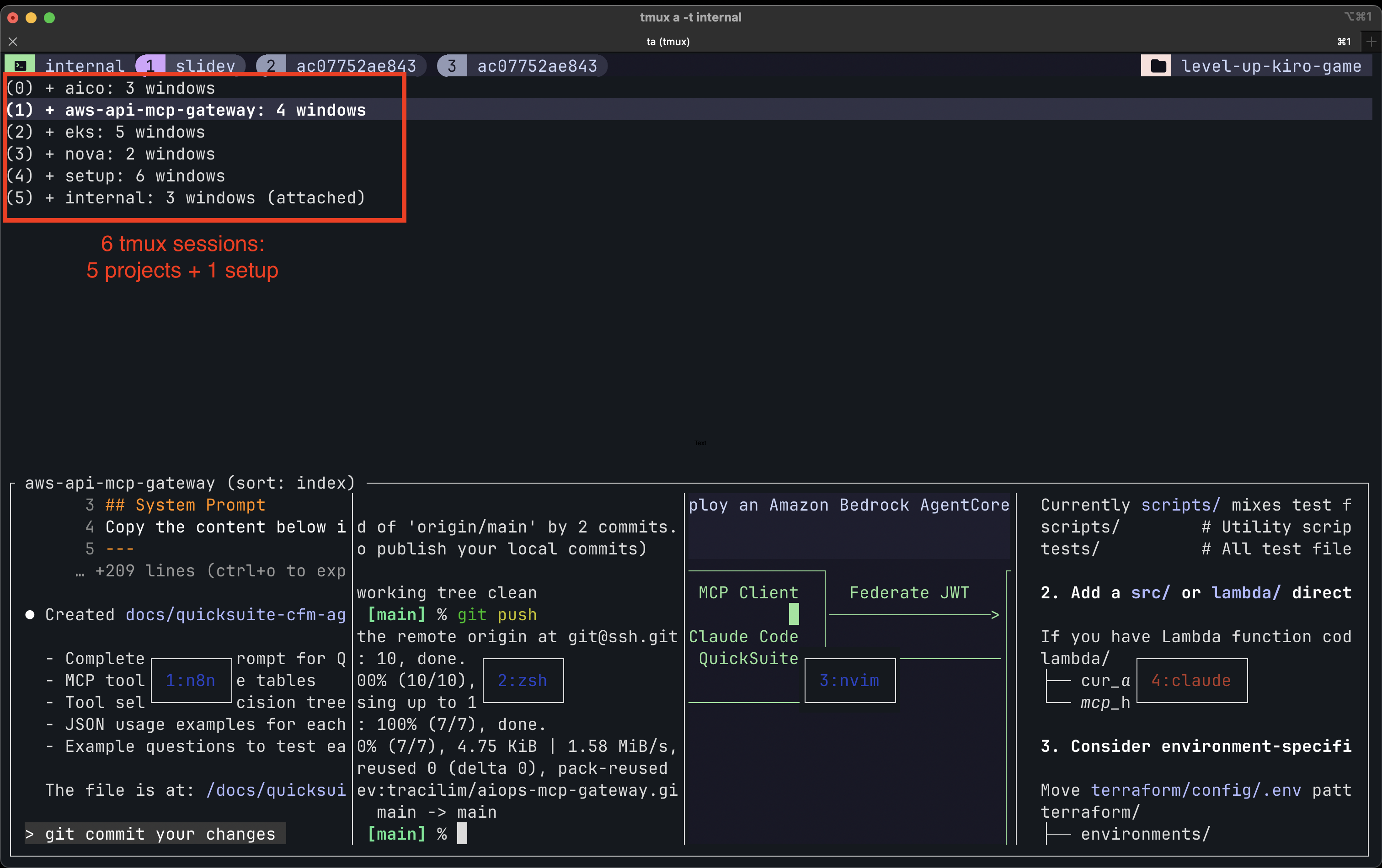
Each project is a session. Within a session, I have windows for different contexts (code, tests, logs). Within windows, I split panes to see multiple things at once. I can detach, go home, reattach, and everything is exactly where I left it.
Neovim keeps my hands on the keyboard. Once you internalize the modal editing mindset, you stop thinking about how to edit and just... edit. The plugin ecosystem is incredible - fuzzy finding, LSP support, Git integration, all composable and fast.
Here's the humbling part: even after years of using these tools, I still can't say I'm an expert in any of them. I'm constantly discovering new keybindings, new workflows, new plugins. There's always another level. That depth is actually what makes them worth investing in - they grow with you.
For fellow devs considering the leap: mastering Vim and tmux isn't about learning not to use the mouse. It's about eliminating the friction between your thoughts and the machine. Your terminal becomes a persistent workspace where your environment stays alive and your editing moves at the speed of thought.
Honorable Mention: Kiro
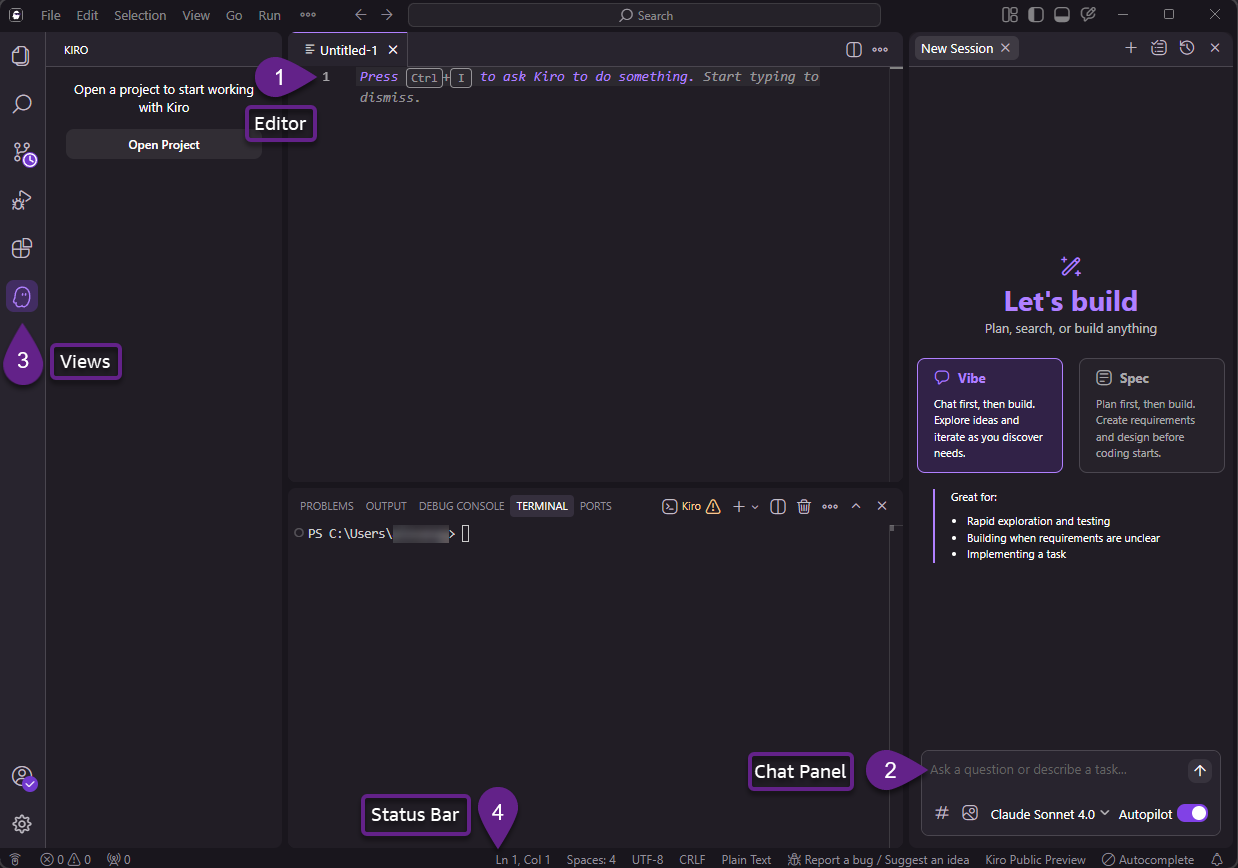
For GUI-based editing, I've been using Kiro. This is coming from someone who has tried Cursor, Trae, Codex CLI, Claude Code, and Copilot.
Kiro is good. It lags behind some of the others in raw capability, but the team behind it gets software development. Their emphasis on steering, specs, and plugins is spot on. You can tell they've thought deeply about how AI should integrate into the dev workflow, not just autocomplete on steroids.
I think it has a ton of potential. Keep an eye on it.
How I Use Claude Code
This is where my workflow has fundamentally changed over the past year.
Multiple Instances, Multiple Projects
I typically run 1-5 Claude Code instances across my tmux sessions. Sometimes they're different projects, sometimes the same project root when I need parallel workstreams. tmux makes this trivial - each project gets its own session, and I can have Claude Code running in a pane right next to my editor.
Opus 4.5 with Thinking, Always
I use Opus 4.5 with extended thinking for everything. Yes, it's slower. Yes, it costs more. But the quality difference is noticeable, especially for complex reasoning and multi-file changes. When you're working on real problems, you want the best thinking available.
MCPs That I Can't Live Without
I'm definitely wary about the 'MCP tax', where idle MCPs loaded take up your LLM's context window. You could be at 50% of your context window, i.e. 200k tokens, before you send a query. Here's some essential ones I lean heavily on:
- Exa MCP - Web search and fact checking. I'm constantly asking Claude to verify things, look up docs, or research approaches. Exa makes this seamless.
- AWS API MCP - For debugging AWS stuff directly. Instead of context-switching to the AWS console, Claude can query resources, check logs, and investigate issues right from the terminal.
- Plus tens of other MCPs that i use internally in my org...
My Workflow Patterns
CLAUDE.md is Non-Negotiable
Every project has a CLAUDE.md file. This is how I give Claude context on project-specific knowledge and preferences.
The key insight: anytime Claude does something wrong, I add it to CLAUDE.md so it doesn't repeat the mistake. Made a bad assumption about our API structure? Add it. Used the wrong testing pattern? Add it. Over time, CLAUDE.md becomes a living document that makes Claude increasingly effective on your specific codebase. Some people use hooks for updating this, but I prefer updating it whenever I feel like it, mostly to reduce noise going into it.
Here's an example of what entries might look like:
## Project Conventions

- Use `uv run python` instead of `python`
- Use pytest fixtures, not unittest.TestCase
- API responses are wrapped in `{data, error}` structure
- Run `make lint` before committing

## Common Mistakes

- Don't import from `internal/` - use the public API in `src/`
- The config loader expects YAML, not JSON

...
Plan Mode for Everything
I always start in Plan mode (shift+tab twice to toggle).
The workflow:
- Describe what I want to build
- Claude proposes a plan
- I push back, ask questions, suggest alternatives
- We iterate until the plan feels right
- Once I'm happy, I switch to auto-accept mode
- Claude usually one-shots the implementation
For complex tasks, I'll use ultrathink to give Claude more reasoning time. The extra thinking budget pays off when you're dealing with architectural decisions or tricky bugs.
A good plan is everything. The back-and-forth might feel slow, but it saves massive time on implementation and review. When Claude has a clear plan, it writes much better code.
Subagents for Focused Work
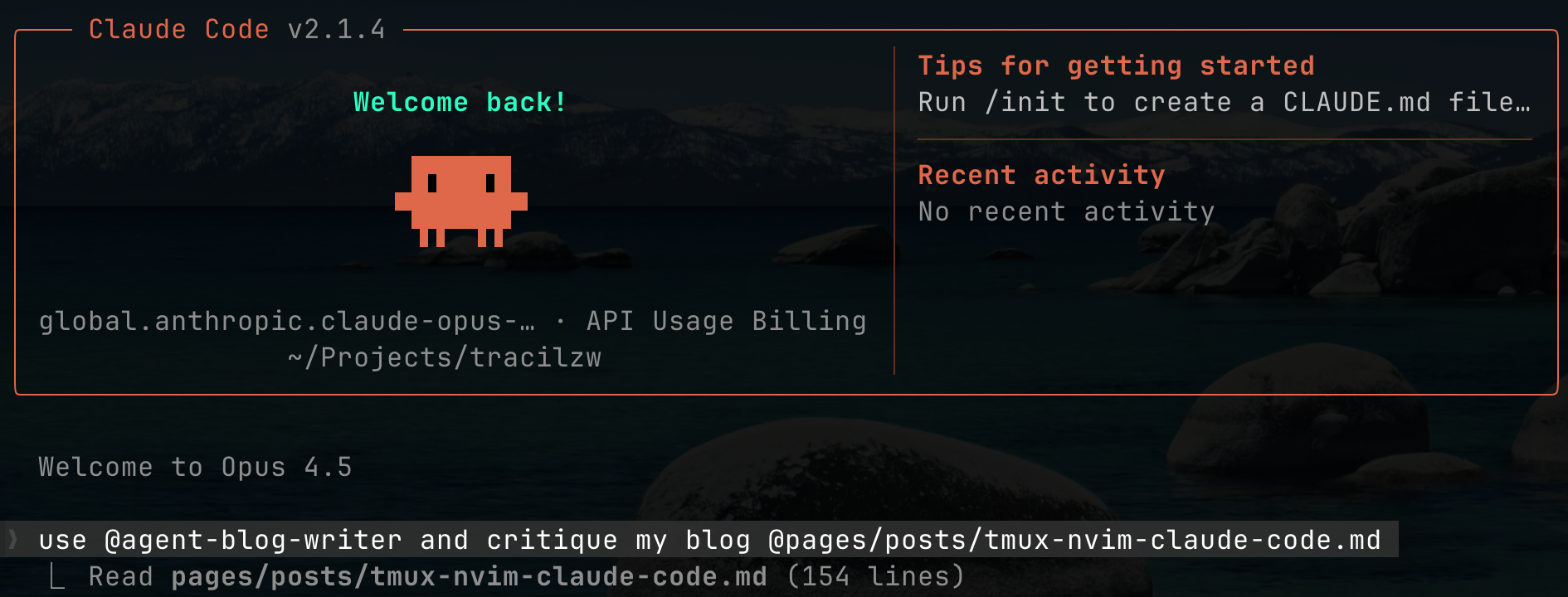
I use subagents constantly. Claude Code can spawn specialized agents for specific tasks:
- Writing - Blog posts (like this one), documentation, technical specs
- AWS debugging - When I need deep investigation into infrastructure issues
- Fact checking & research - Verifying claims, looking up documentation, exploring approaches before committing to one
Subagents stay focused on their task without getting distracted by the broader context. They're particularly useful for tasks that need sustained attention.
Screenshots
I screenshot and Ctrl-V into Claude Code a lot. It's useful for:
- Debugging visual issues (Claude can see images), especially making pptx slides.
- Documenting what went wrong (or right)
- Showing Claude exactly what I'm seeing when something is off
For web dev workflows, I use playwright (install via Claude Code Plugins) and chrome-devtools-mcp.
The terminal might be text-based, but screenshots bridge the gap when you need to show rather than describe.
Final Thoughts
If you're curious, my dotfiles are public and Claude Code is free to try.
But don't copy anyone's setup wholesale. Build yours incrementally. You can't go from VSCode to neovim + 50 plugins in one day - nor should you try.
YouTube tutorials are great for getting started, but true mastery comes from figuring things out yourself. There's always another keybinding to learn, another plugin to try. Just remember: the goal is to ship better code, not to have the prettiest terminal.
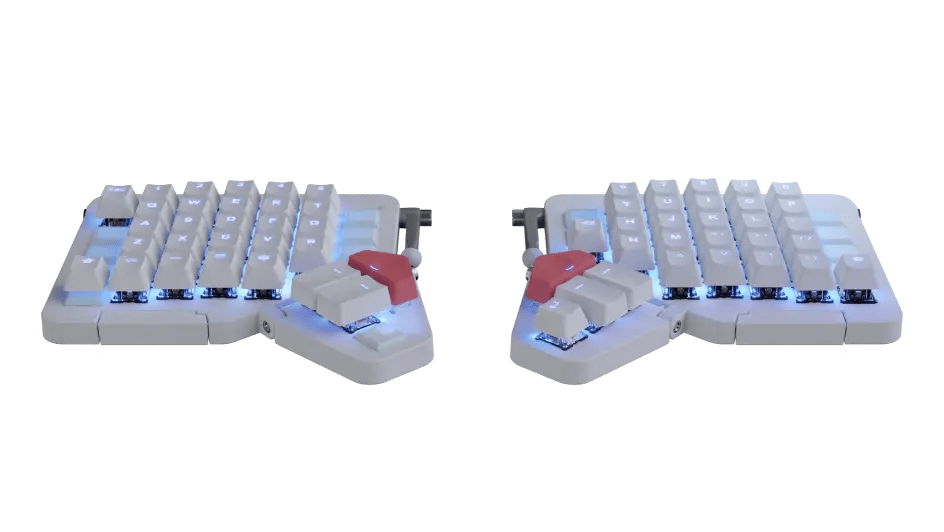
You could even argue you don't need any of this. Maybe all you need is a good split keyboard.